
Add an alarm
Tap Alarm at the bottom of the screen, then tap the + button in the lower right. The Add Alarm screen opens.
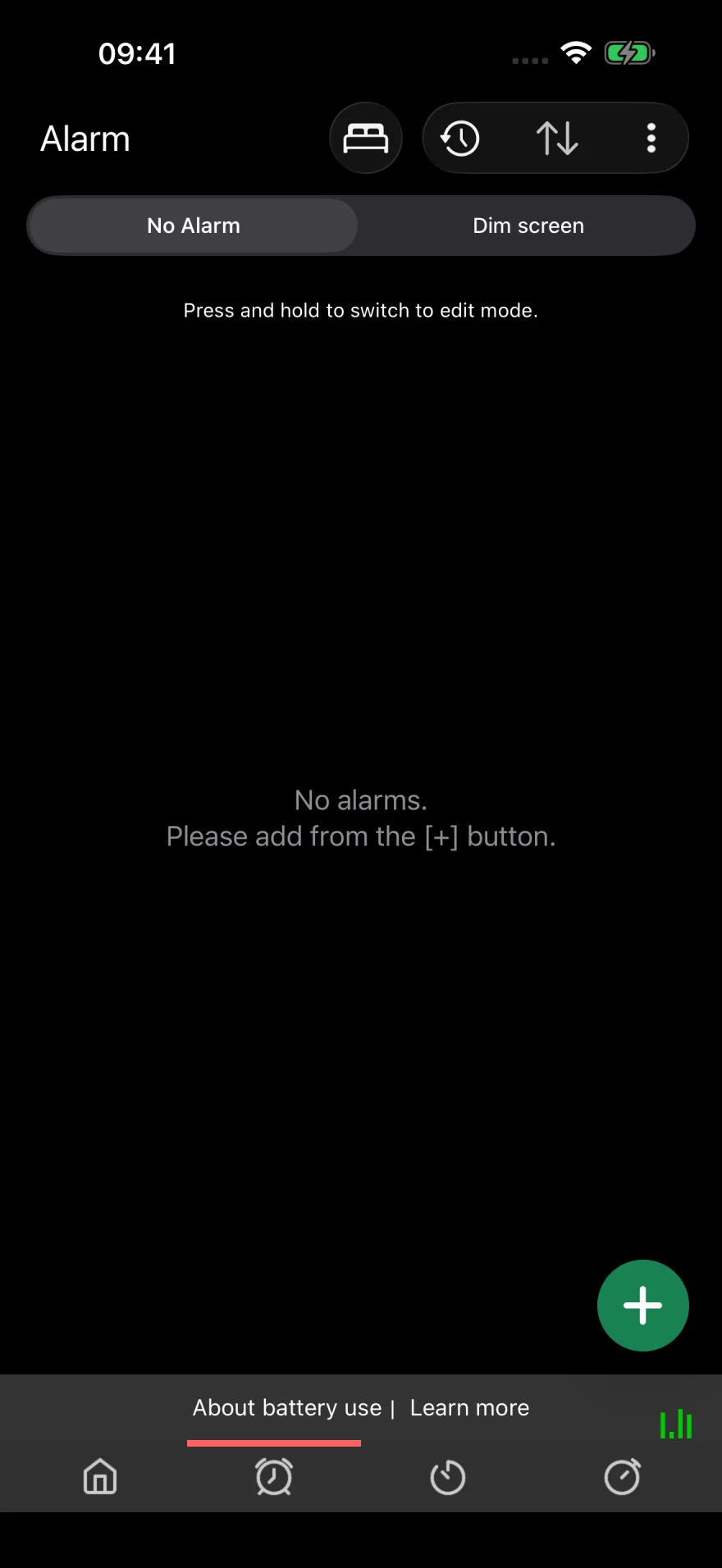
Set the alarm time
Set the time with the picker at the top. The example shows 6:30 PM. Leave Set a Specific Date off and leave weekdays unselected to create an alarm that rings once.
If you want to reduce daytime battery use, you can skip the weekly repeat and turn on the next morning’s alarm before bed. See daytime battery use.
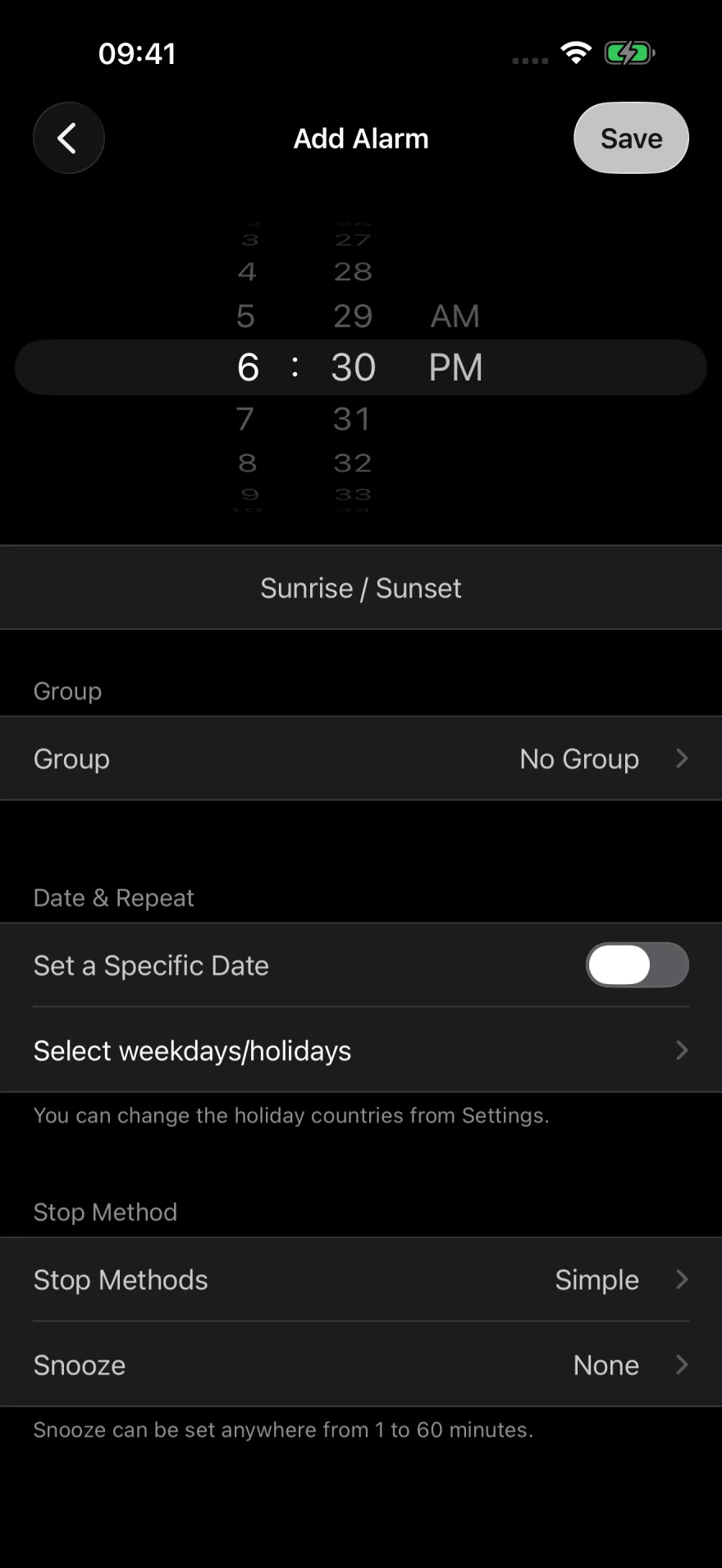
Choose how to stop the alarm
Check that Stop Methods is set to Simple for your first alarm. Tap that row to choose a different stop method, or set a Snooze interval if you want the alarm to ring again.
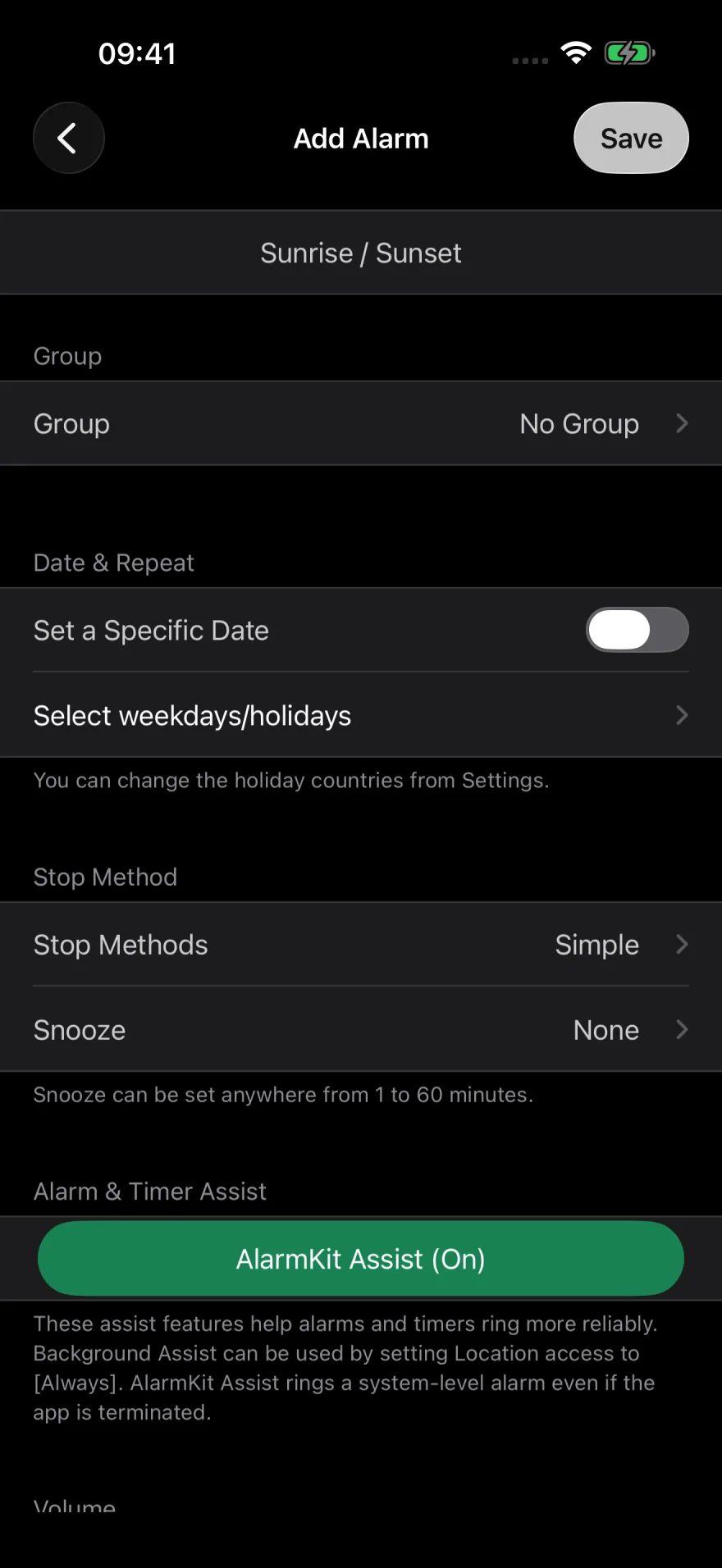
Pick an alarm sound
Turn on Sound Files Playback. Under One Selection, tap the sound name to open the sound library. Tap a sound to select it and return to the alarm settings.
This example uses Beep. If you want to hear an alarm sound, choose a sound other than Silent.
To wake up to music, follow the YouTube setup or Apple Music setup.
Save and test the alarm
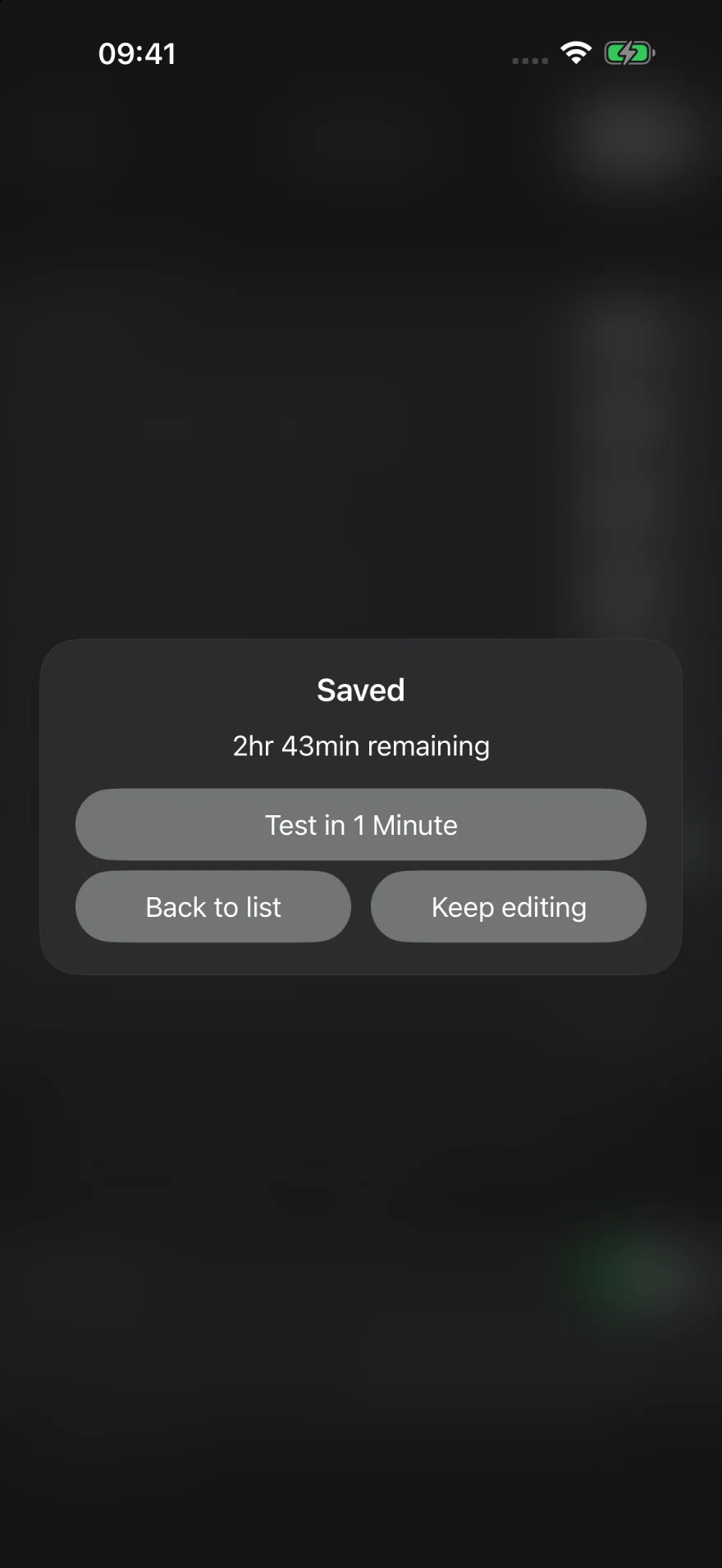
Tap Save in the upper right. When the Saved screen appears, tap Test in 1 Minute to try the sound, volume, and stop method. The test rings in about a minute and keeps your saved alarm time.
Tap Back to list if you want to test later.
If you see Before Turning On the Alarm with a notification request, tap Continue, then Allow on the iPhone prompt.
On iOS 26 or later, you may also see a prompt to enable AlarmKit Assist if it is off. Review the prompt before continuing.
Check that the alarm is on
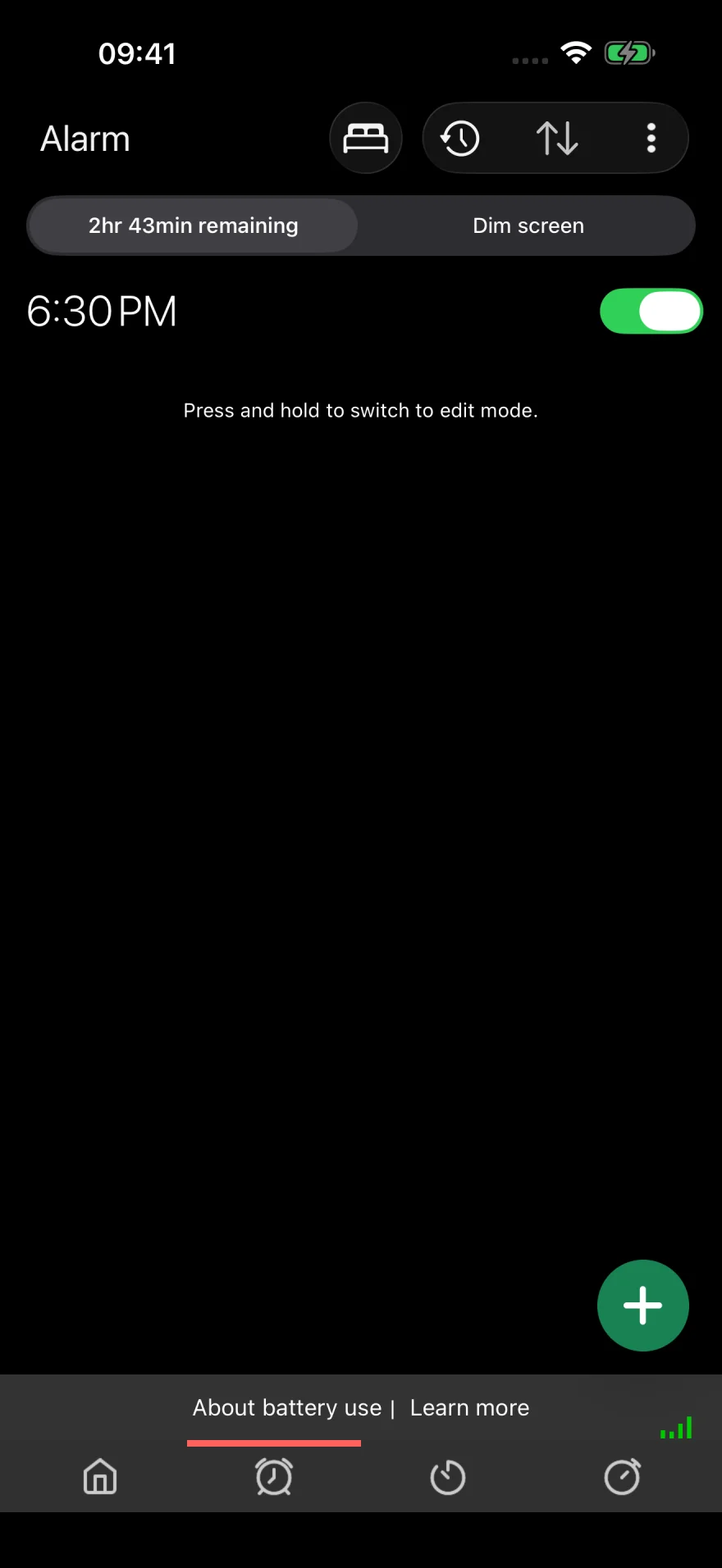
In the alarm list, confirm the time and check that the switch is on. A one-time alarm turns off after you stop it. If you want to use it again, check its time and switch before bed.
Before bed
- Check tomorrow’s alarm
Open the app and check the time, sound, and switch. - Leave the app running
You can lock your iPhone. Avoid swiping the app away in the app switcher. - Test how you plan to use it
If you sleep with your iPhone locked, lock it during the test and check the sound and volume. - Set a backup sound
If you use YouTube or Apple Music, add a sound file for times when music playback fails.
Still need help? Contact us with a description of the issue and your iOS and app versions.