
Turn on Apple Music Playback
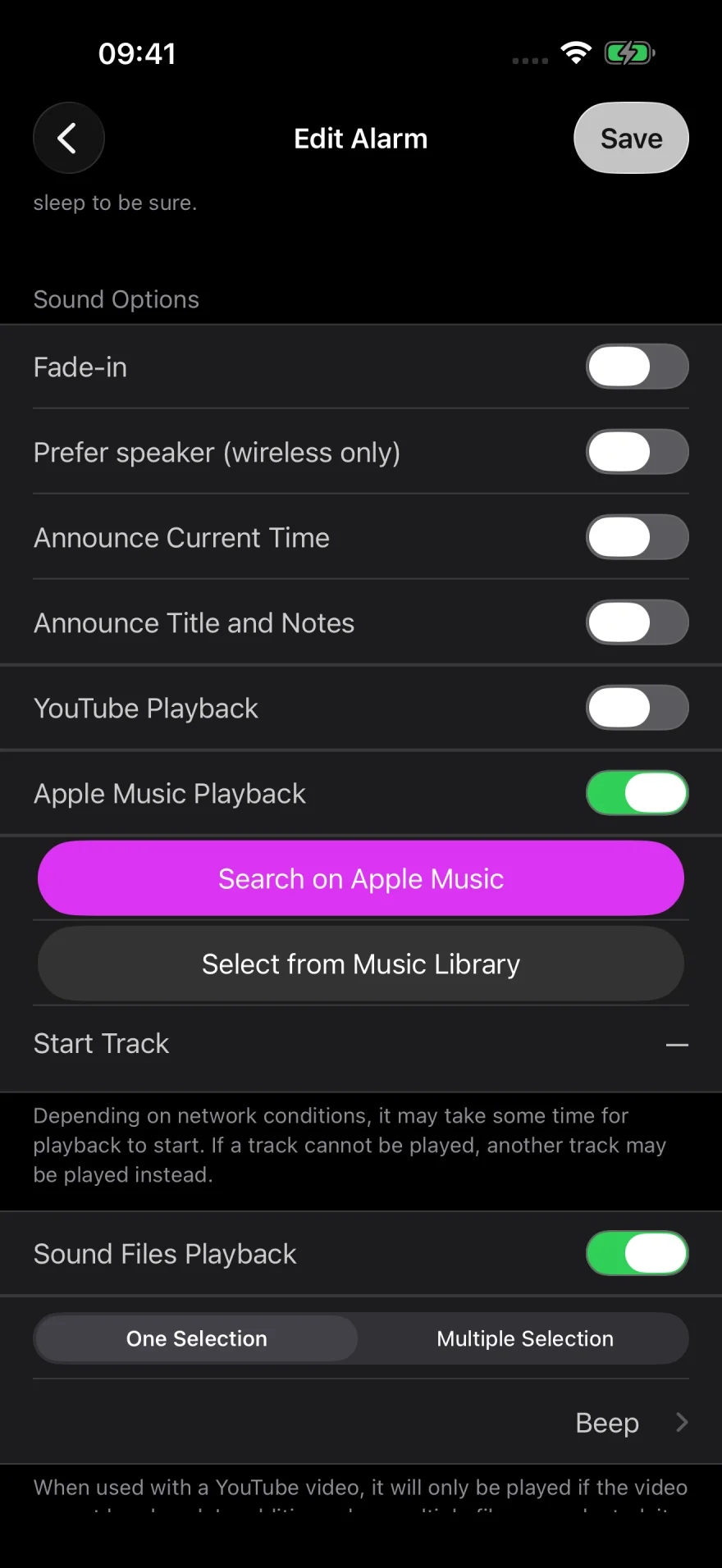
Add an alarm or open one from the list. Scroll down and turn on Apple Music Playback. To use Apple Music as the main sound, leave YouTube Playback off.
You need an Apple Music subscription to play tracks from the Apple Music catalog.
Search for a track
Tap Search on Apple Music and enter a song, artist, or album name.
If the app asks for access to Apple Music, tap Continue, then tap Allow on the iPhone prompt.
Choose what to play
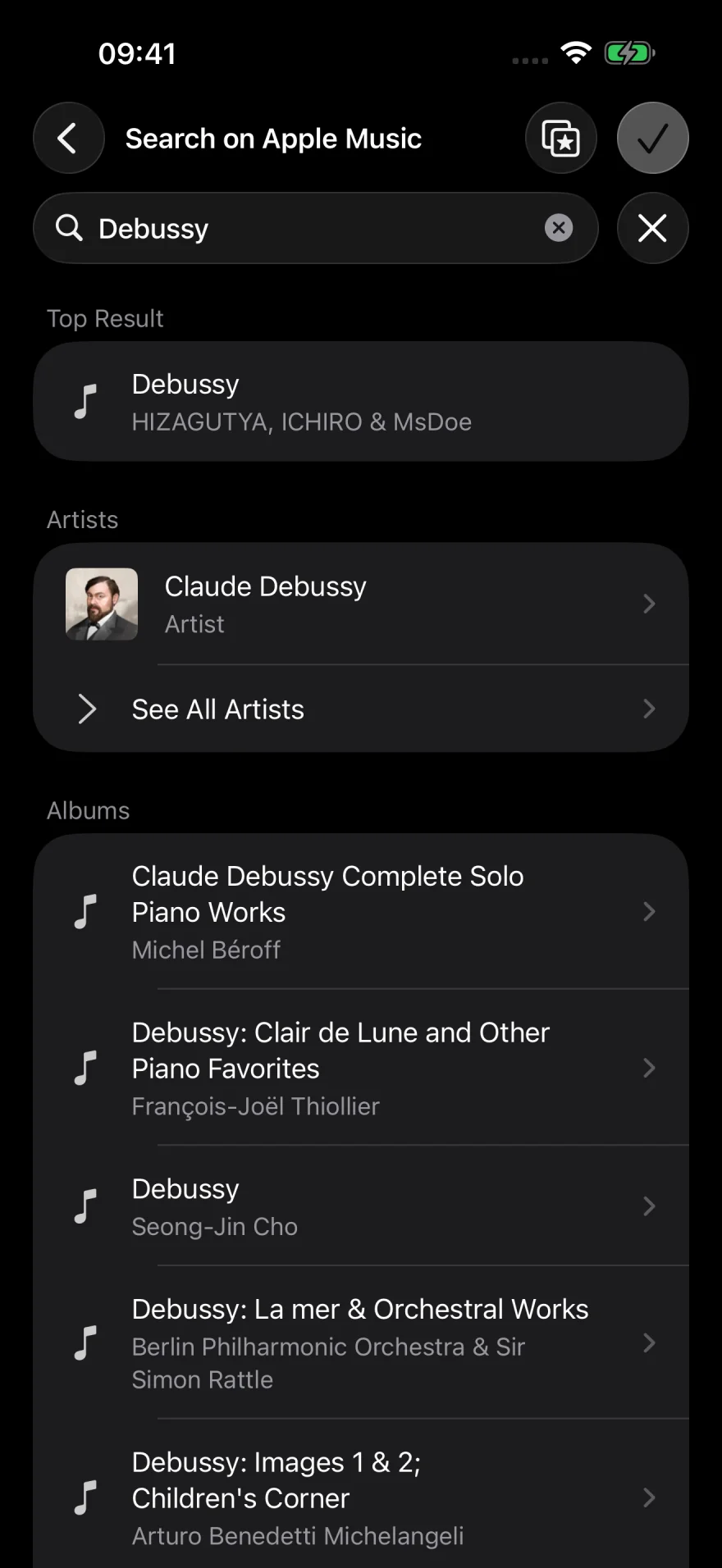
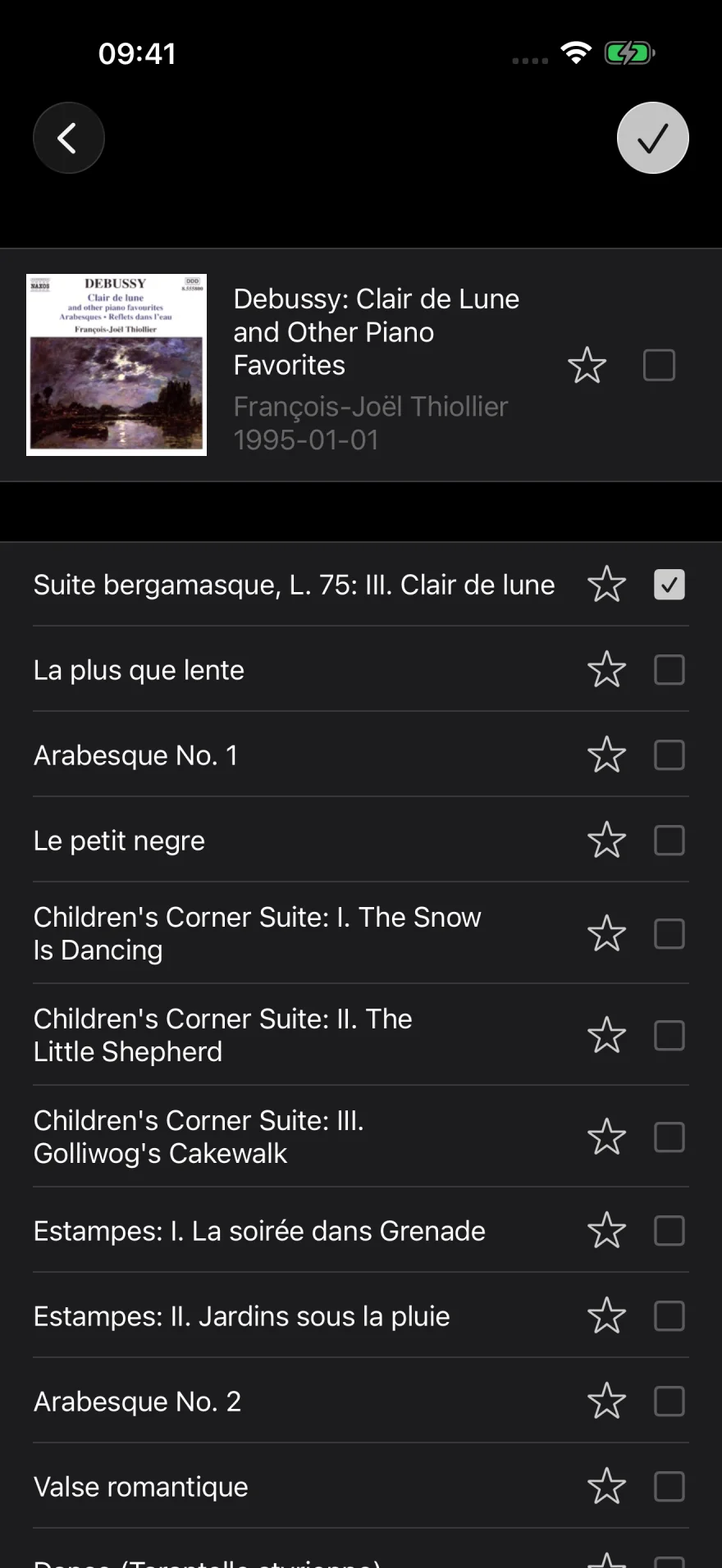
Open a track or album from the search results and tap a track to select it. You can select more than one.
Tap the checkmark in the upper right to apply your selection and return to the alarm settings.
Check the track and save
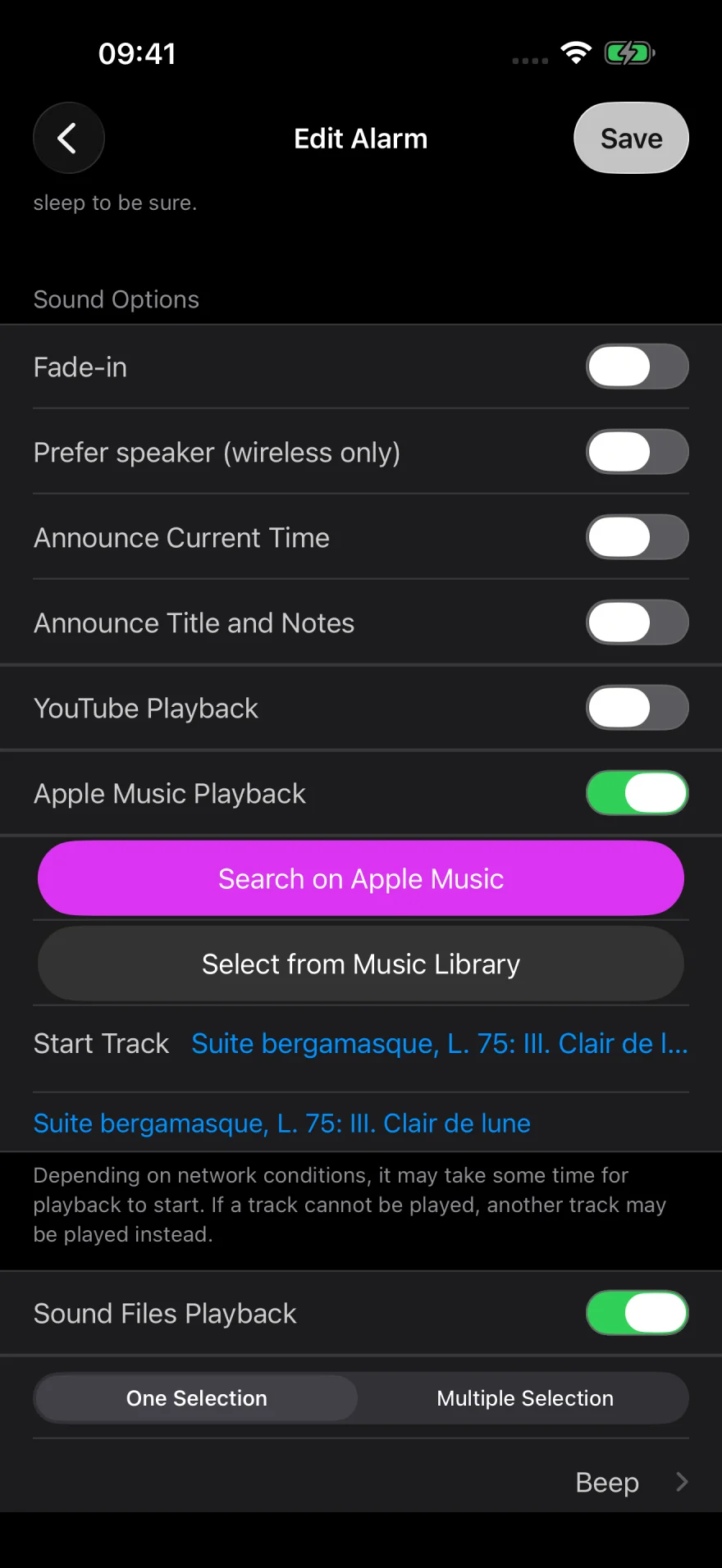
Check the selected song under Start Track. For a backup, turn on Sound Files Playback and select a sound such as Beep.
Tap Save, then use Test in 1 Minute to check what plays and how loud it is. If you plan to lock your iPhone at night, lock it during the test as well.
Use songs from your Music Library
Tracks downloaded to your iPhone in the Music app can play as an alarm offline. If you choose several tracks, download each one you want to hear. See Apple’s download instructions.
Turn on Apple Music Playback and tap Select from Music Library. Pick your tracks, return to the alarm settings, and check Start Track.
If the selected song does not play
In the app’s Settings, open Apple Music Alarm Settings to check access to Apple Music and your Music Library.
For catalog tracks, check your subscription. For songs you have not downloaded, check the connection as well. If you hear the backup sound, try the alarm in the same conditions you plan to use it in.
For volume and notification settings, see troubleshooting.
Still need help? Contact us with a description of the issue and your iOS and app versions.